Give a product its setting.
After
Drag to compare the original and AI edit. Or use the arrow keys.
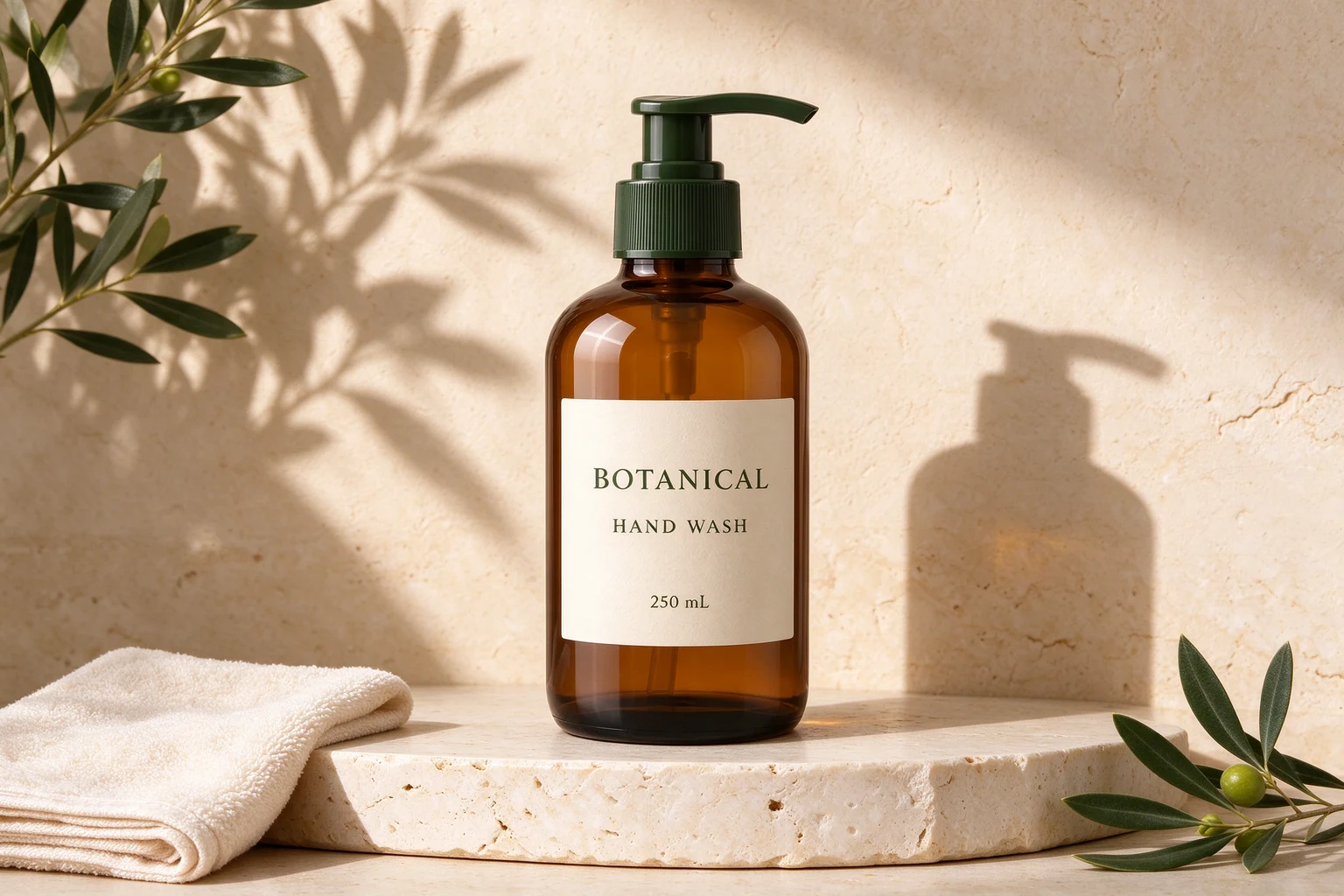
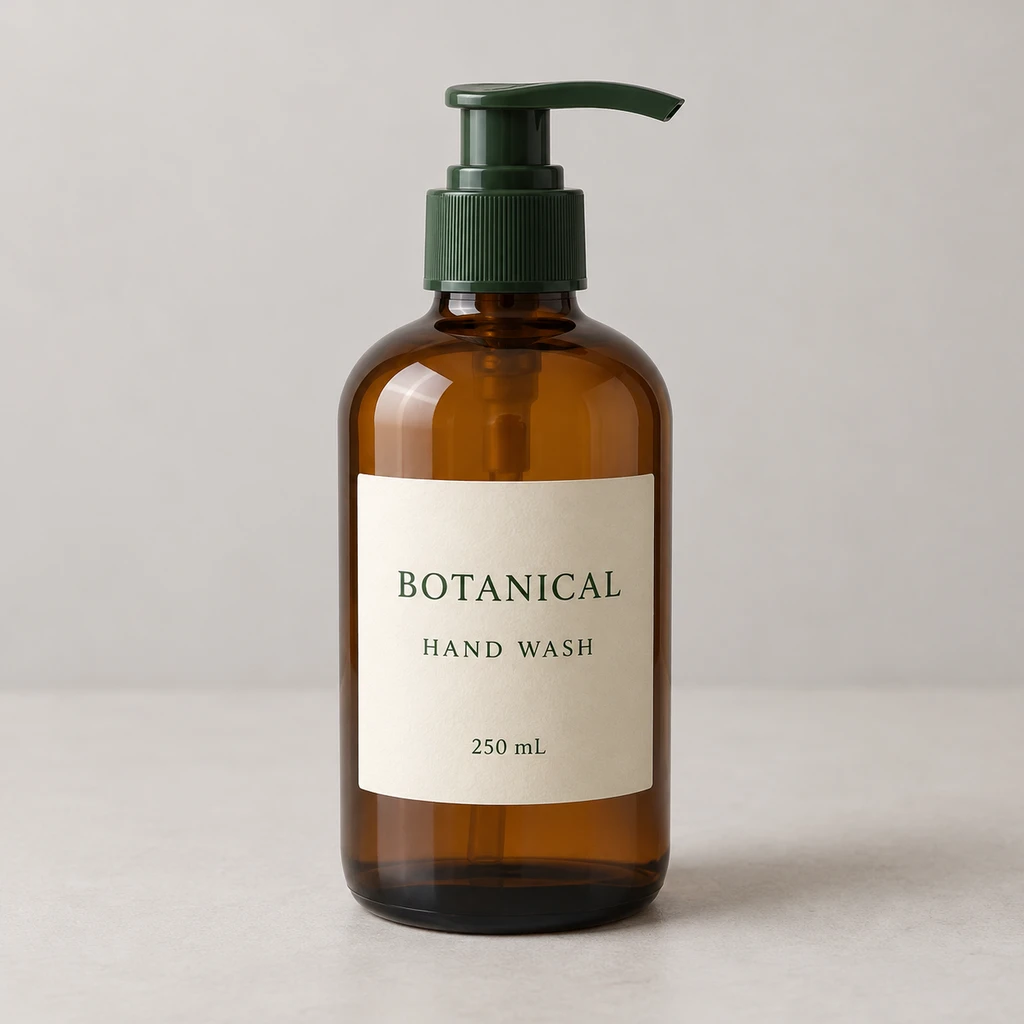
A plain product photo needs context.
Describe a new setting, lighting or style. Compare the edit, then make it fit your shop, socials or next idea.
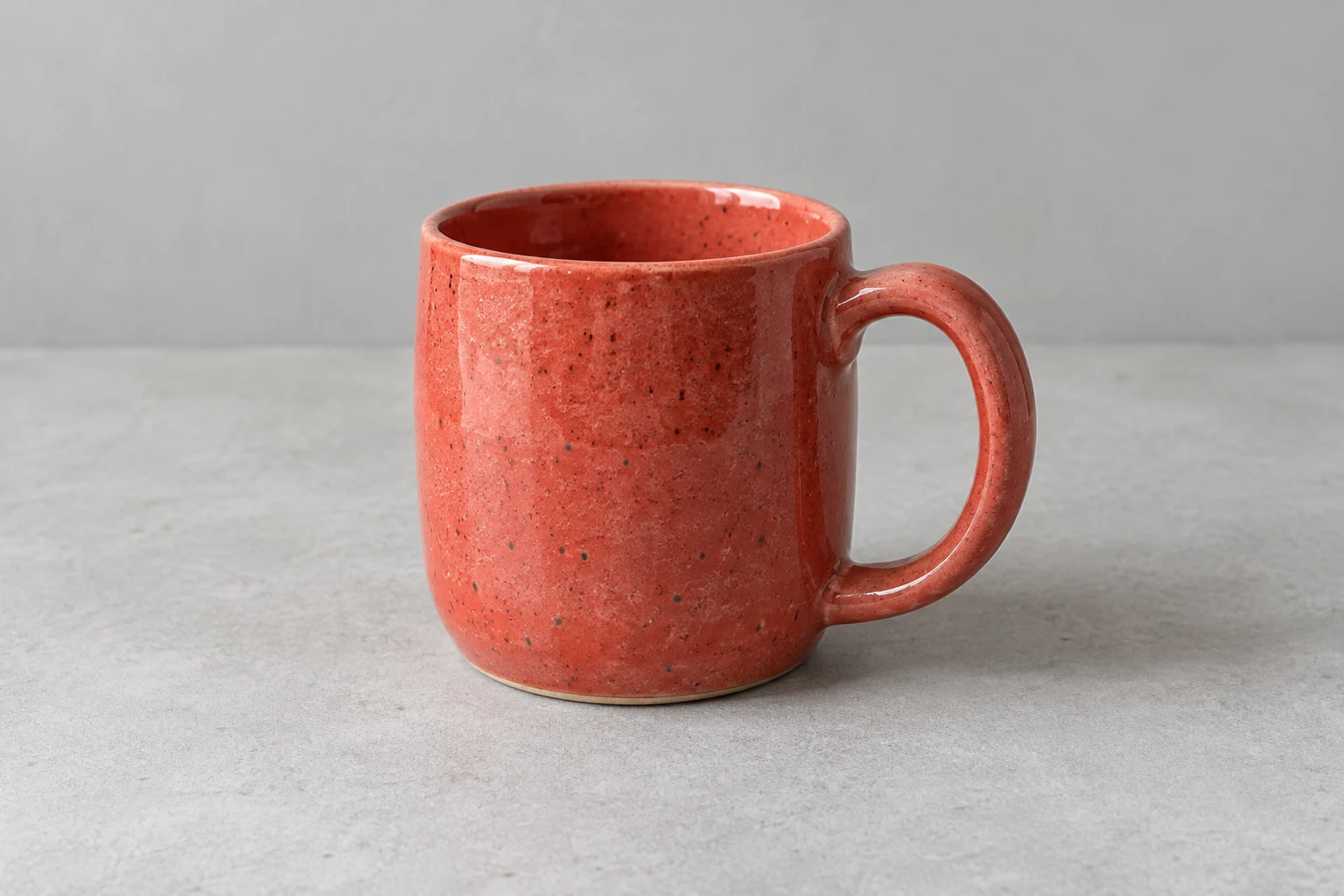
Drag to compare the original and AI edit. Or use the arrow keys.
Synthetic demo original · Real KIE edit · Results need review.
Public preview · AI generation & checkout are closed.
Try a real result & export sizes Free finishing works now. No sign-in needed for the demo.A product launch. A room idea. A different visual style.
Your starting photo does the talking.
Drag to compare the original and AI edit. Or use the arrow keys.
A plain product photo needs context.
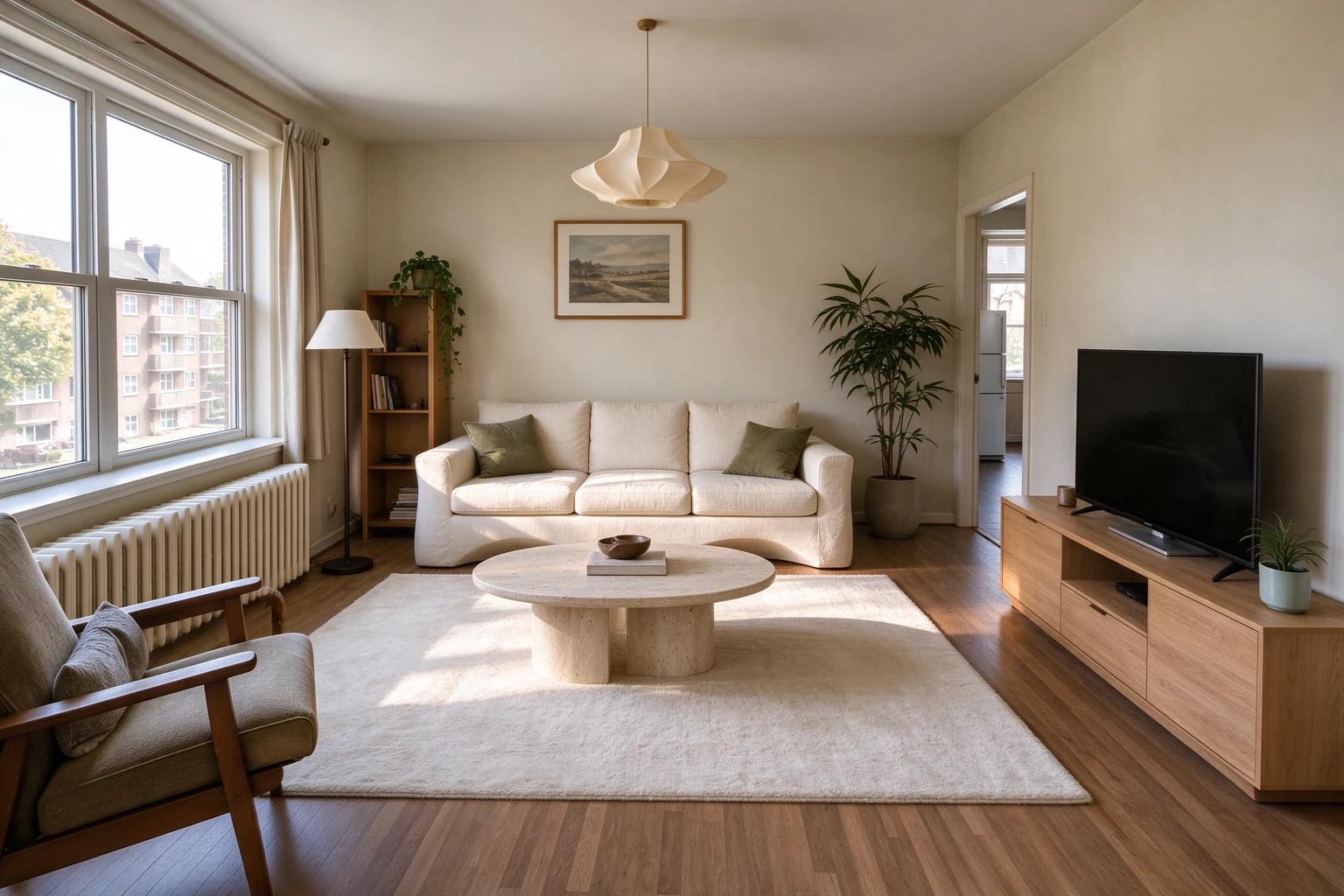
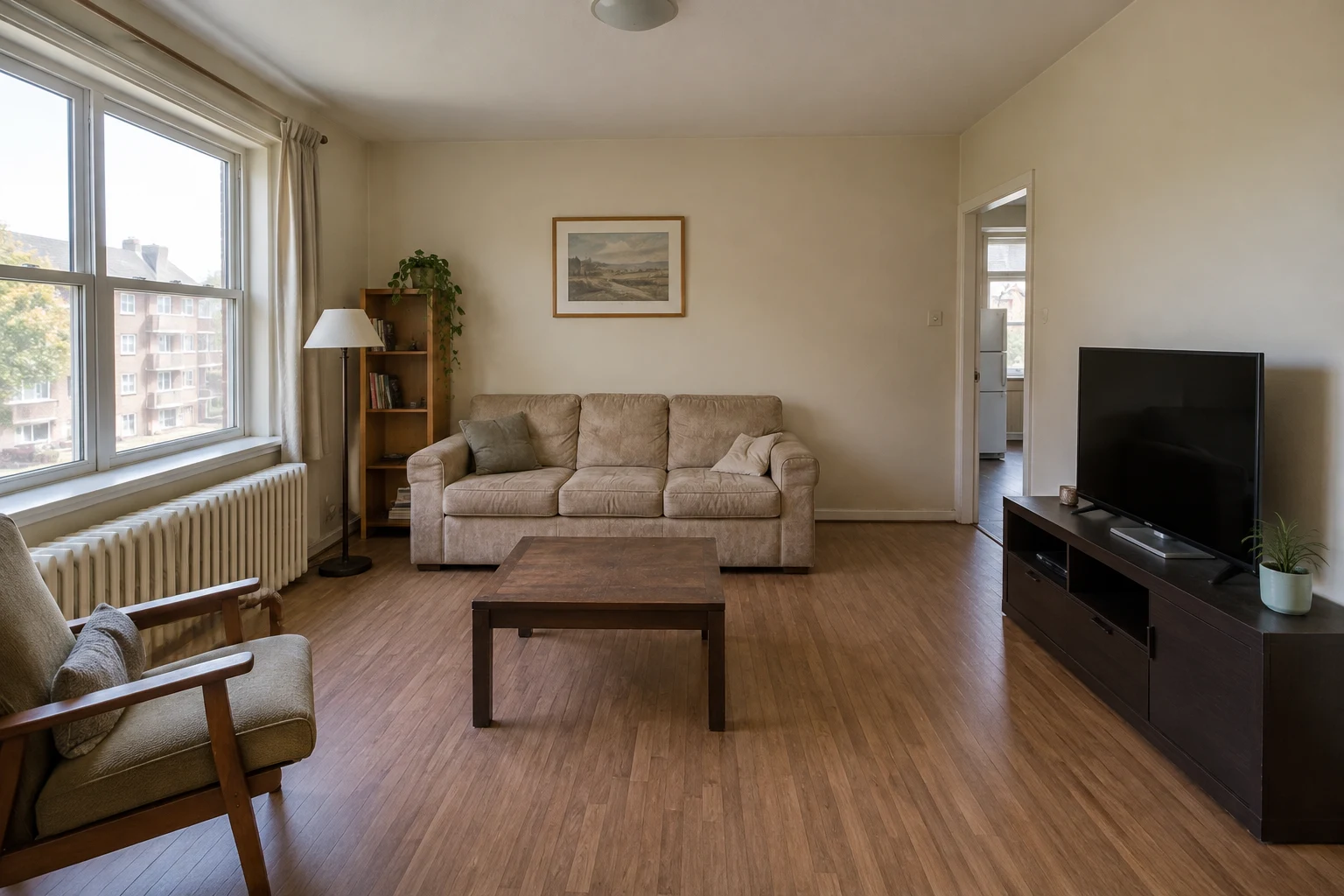
Drag to compare the original and AI edit. Or use the arrow keys.
Try a new look before changing your space.
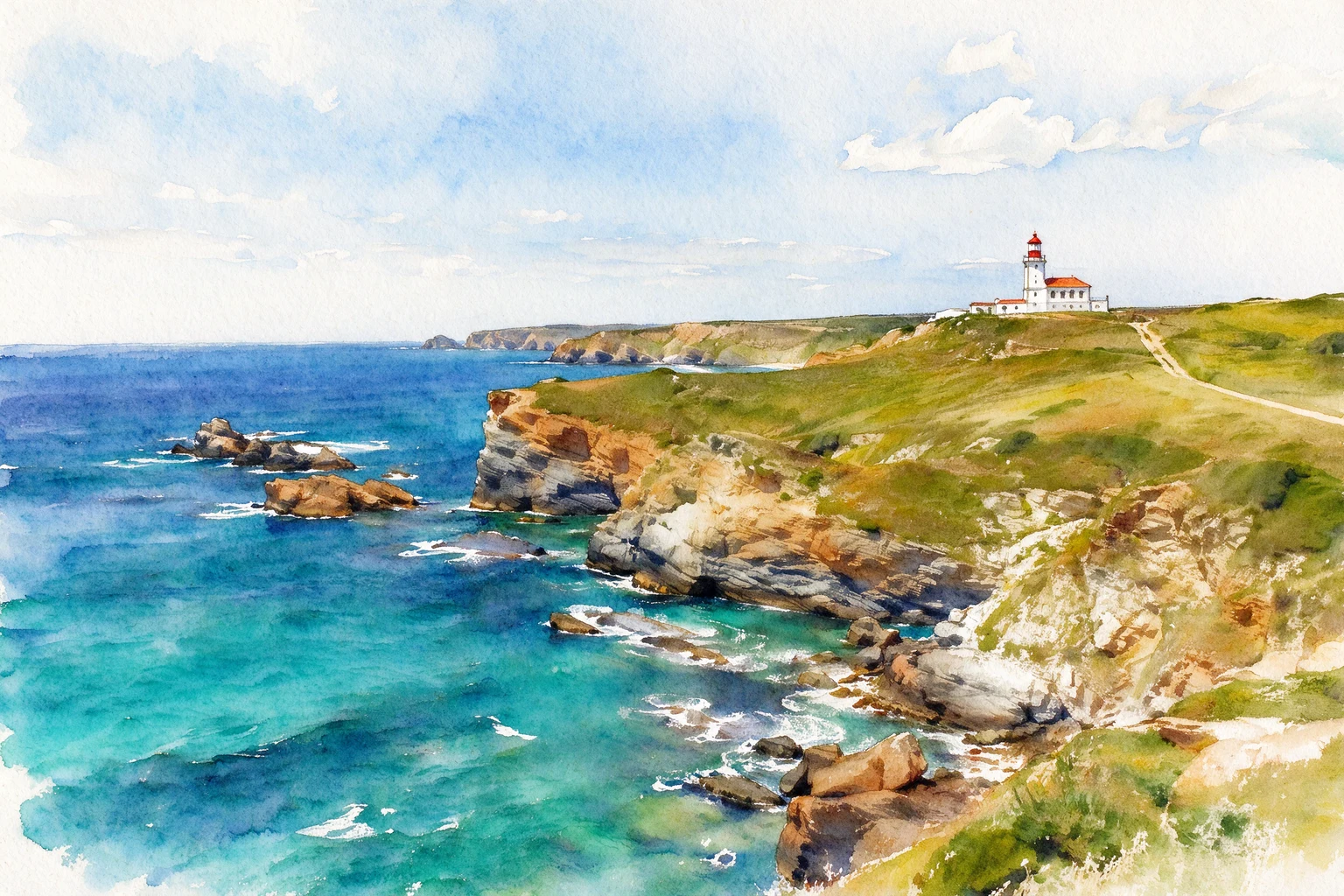
Drag to compare the original and AI edit. Or use the arrow keys.
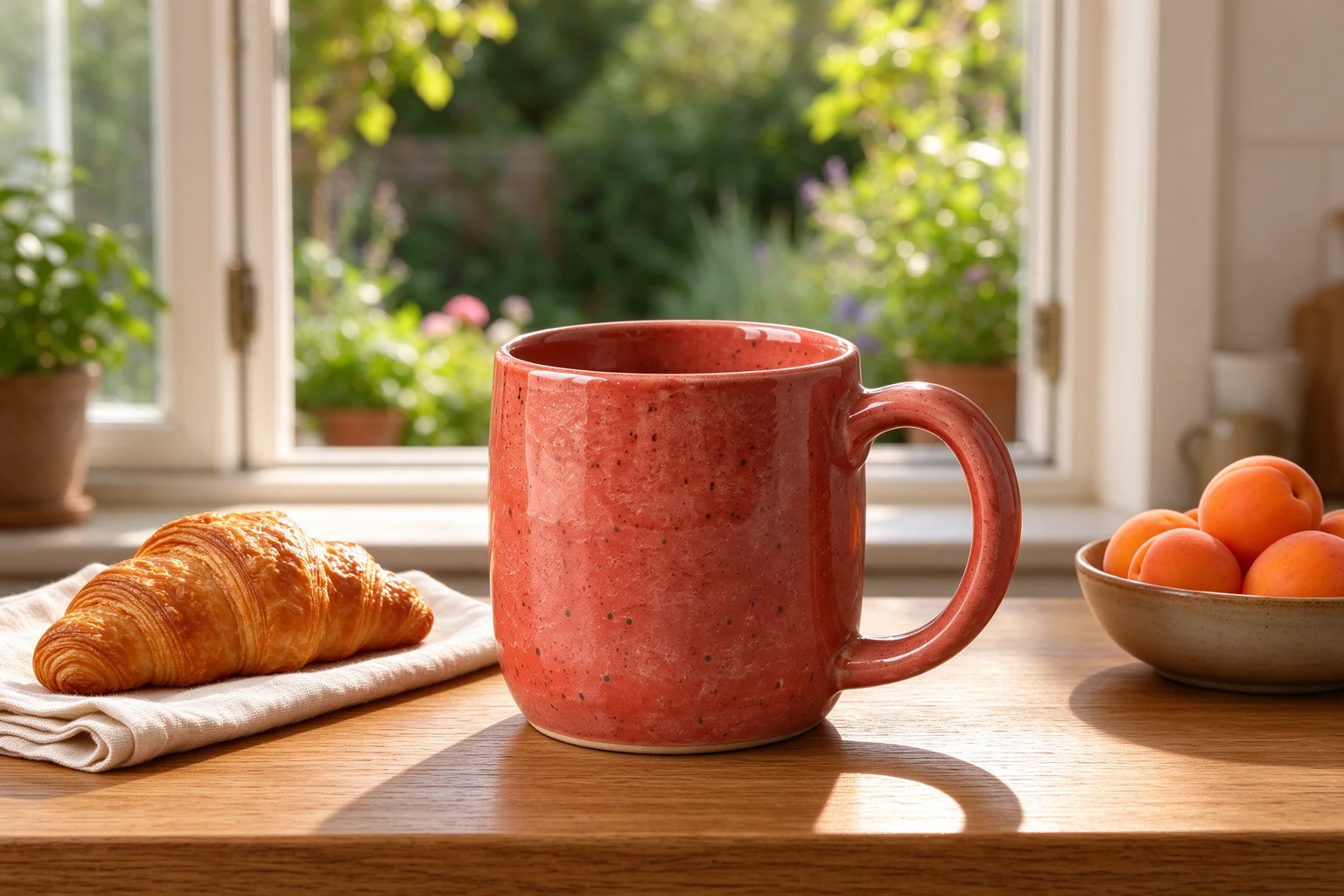
Give an existing photo a new visual style.
First-party synthetic originals, actually edited with KIE. These are examples, not customer photos or a promise of identical results.
Tell us what you’re working on, the scene you want and the details that matter. Start with a useful brief, then change every word in the editor.
This prepares your request. It does not generate an image or use an AI allowance.
Creates an editable prompt. No AI image is used. Keep instructions guide the model; check the actual result.
Inspect the details, choose your framing, then download a size pack.
No account needed for this demo.
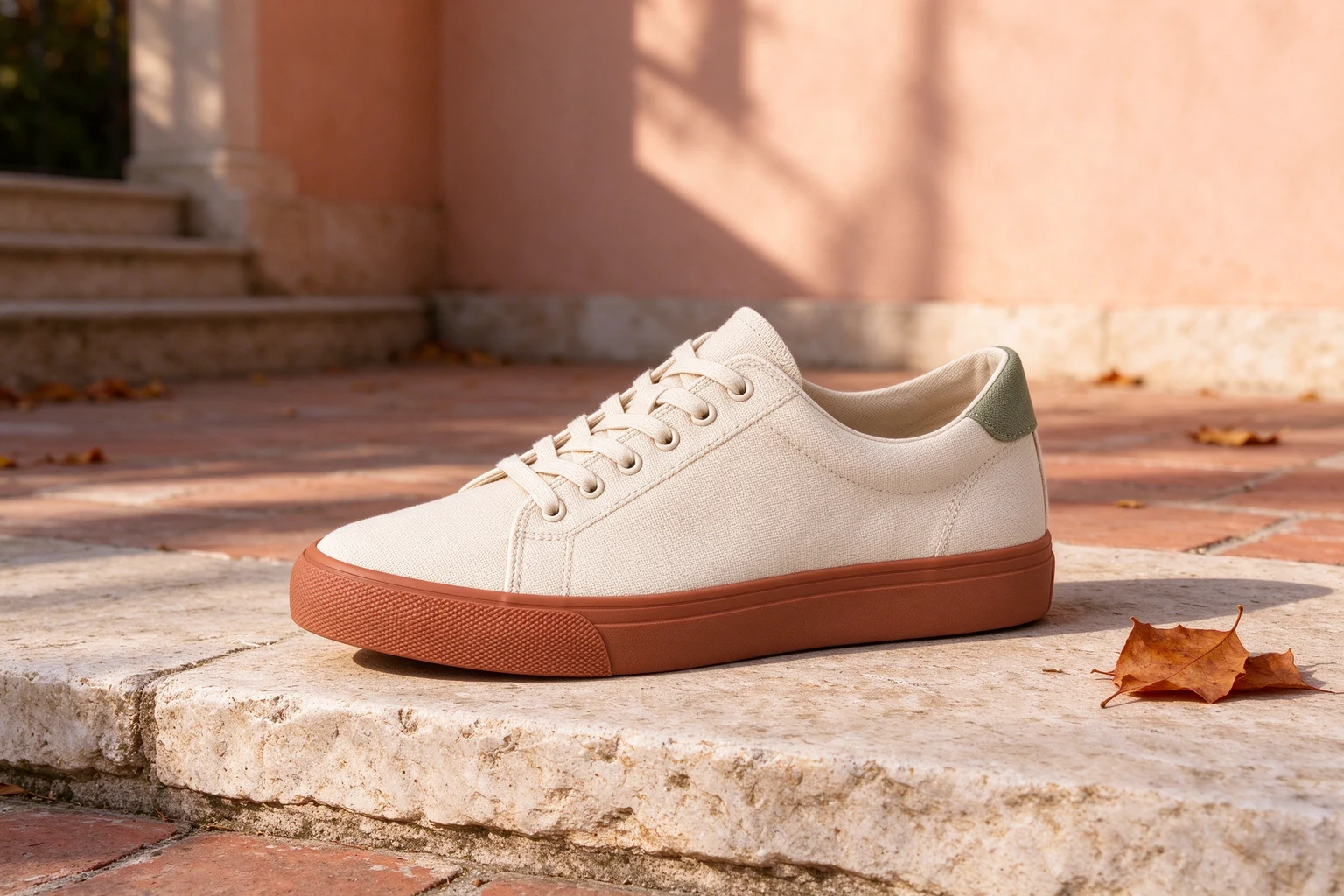
Style this canvas sneaker in a terracotta courtyard with autumn leaves and warm afternoon light. Review the shape, stitching and sole before publishing.
Keeps every edge of your photo, adding warm-white space. No AI expansion.
The guide is not included in your export. Cropping uses existing pixels. Resizing does not add detail.
One image, three PNG files. Uses the current framing and focus in each size. Review each crop. No additional AI generation.
Download full-size imageFirst-party synthetic product, genuinely edited with KIE. These exports use the same existing result; no extra AI generation or image allowance is used.
Crop or keep the whole image, then download three useful sizes. Your photo stays in this browser.
One successful AI output uses one image.
Ordinary crop, resize and size packs are free.
Subscriptions are not available yet. These are our planned standard monthly prices; no payment is taken in this preview.
$9/ month
Occasional edits and new ideas
30 successful images per month
Approx. $0.30 per image at full monthly use
Try free crop & export Monthly reset · no rollover$19/ month
Regular listings and social content
160 successful images per month
Approx. $0.12 per image at full monthly use
Try free crop & export Monthly reset · no rollover$39/ month
Frequent scenes and campaigns
350 successful images per month
Approx. $0.11 per image at full monthly use
Try free crop & export Monthly reset · no rolloverOne successful AI output uses one image. Failed generations do not use your allowance. A new AI edit uses another image on success.
Subscriptions are not open yet. Monthly reset, no rollover. A failed generation does not use your image allowance.
Public AI editing and paid subscriptions are not open in this preview. Signing in does not unlock AI generation. You can crop and export your own photo in your browser without an account, and explore real AI-edited examples.
It edits an existing image with a written instruction. Upload a photo, describe what should change, choose a shape, then review the new image. You can change a scene, lighting, style or individual details.
No. The image editor accepts your own photos and a freeform prompt. Product Studio adds scene starting points and export sizes for shop owners.
AI can alter packaging, shapes, logos and small text. Compare the original and result, and inspect important details before publishing. We do not promise exact preservation.
No. Cropping, resizing and exporting the same result use no AI images. They do not add new content outside the picture. Describe an expansion in the prompt to generate a new image; a successful AI edit uses one image.
Three PNG files of the same image: 1600 × 1600 square, 1080 × 1350 social portrait, and 1920 × 1080 landscape. Keep whole image adds warm-white space; Fill & crop trims edges using your current zoom and focus. Check each crop before publishing. The ZIP is created in your browser and does not use another AI image.